


![How to Auto-Post to Flickr from WordPress [A Complete Guide]](https://www.fs-poster.com/storage/posts/ee8ff2da6e9c84a39cefec7b36023ae8-1778158792.webp?v=1778158792)
Are you a photographer, blogger, or content creator who shares images on Flickr? If you're also running a WordPress website, you can save a lot of time by automatically posting your content to Flickr using FS Poster.
Flickr remains one of the largest photo-sharing communities in the world, with millions of active users. By auto-posting your WordPress content to Flickr, you can reach a wider audience and drive traffic back to your website.
This guide will show you how to set up FS Poster to automatically share your WordPress posts to Flickr.
How to Add Flickr Accounts for Auto-Posting
To start sharing your posts to Flickr, you first need to connect your Flickr account to FS Poster.
Navigate to FS Poster > Channels in your WordPress dashboard and click the Add channel button.
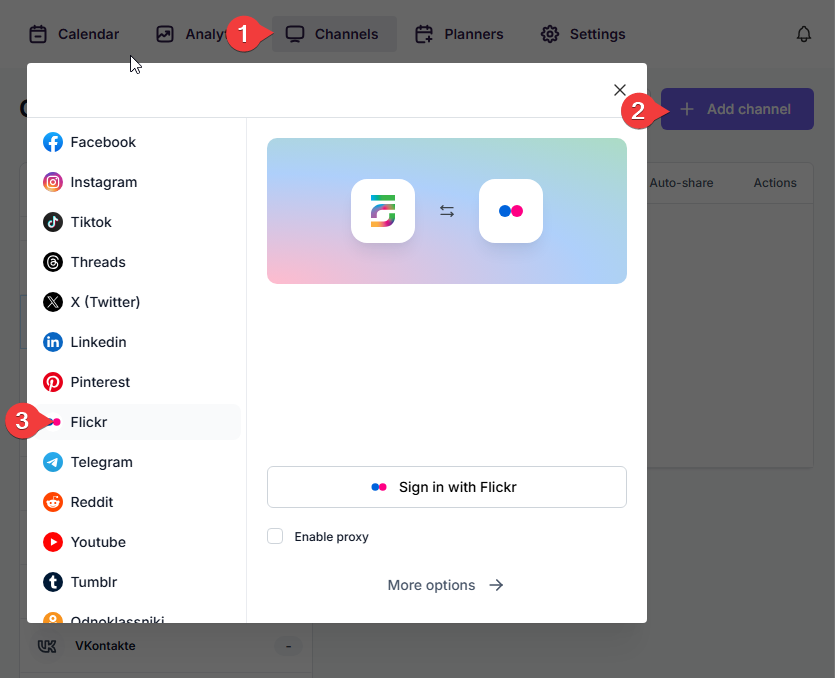
In the opened window, find Flickr in the list and click the Sign in with Flickr button to add your accounts to the plugin.
How to Share from WordPress to Flickr
Once your Flickr account is connected, you can start sharing your WordPress content.
Sharing your posts using FS Poster is extremely simple. You just need to publish your WordPress post.
The plugin will do the rest for you.
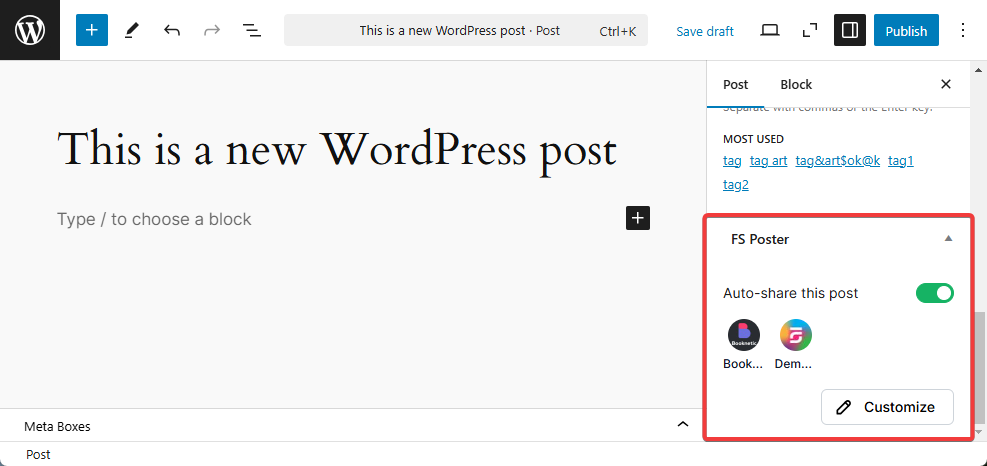
Also, you can share posts without creating a WordPress post. Go to the Calendar tab and click Schedule new post.
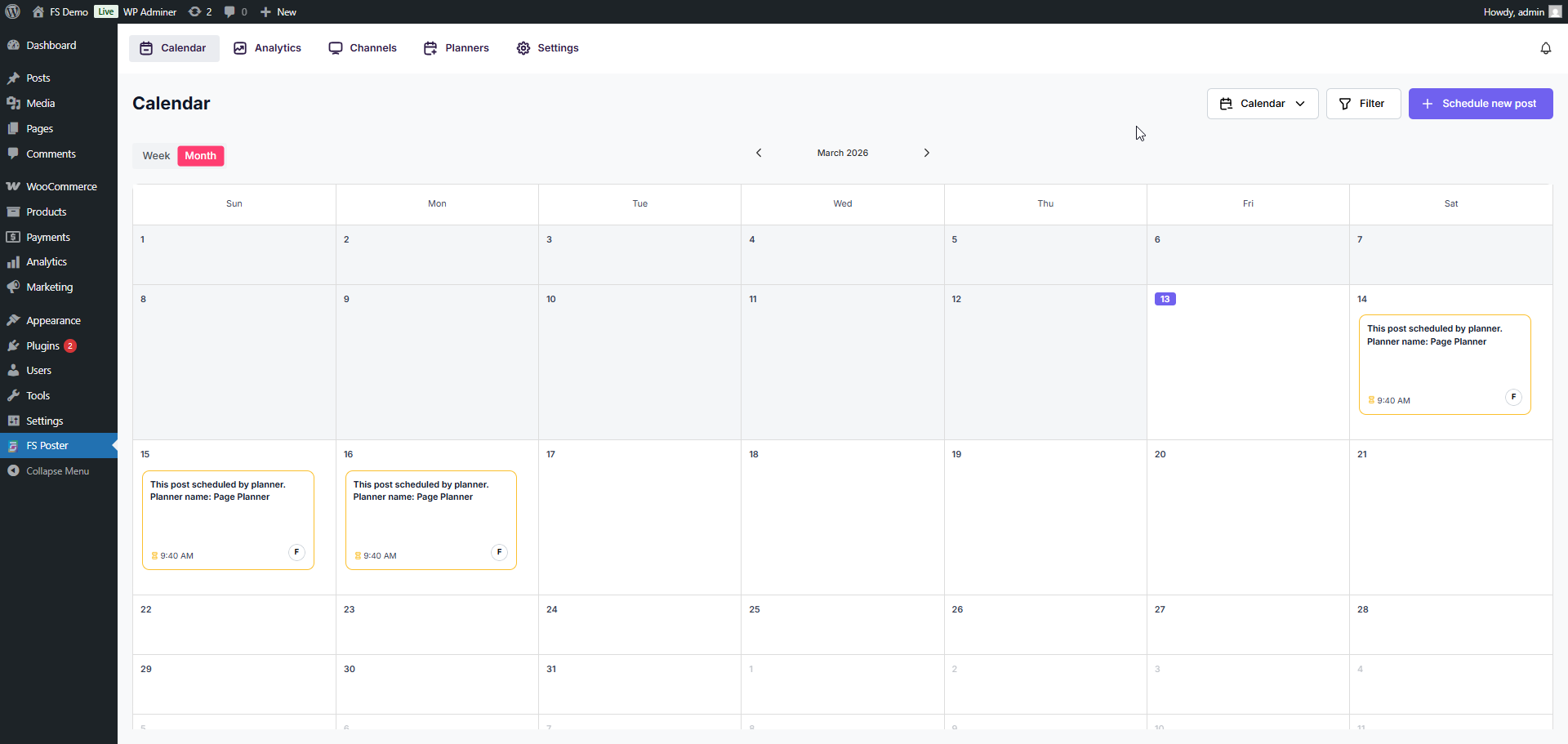
Click Choose channels, find your Flickr channel, and add it to the share list.
You can schedule the post for a specific date and time, or share it immediately by clicking the arrow next to the Schedule button and choosing Share now.
Flickr-Specific Settings
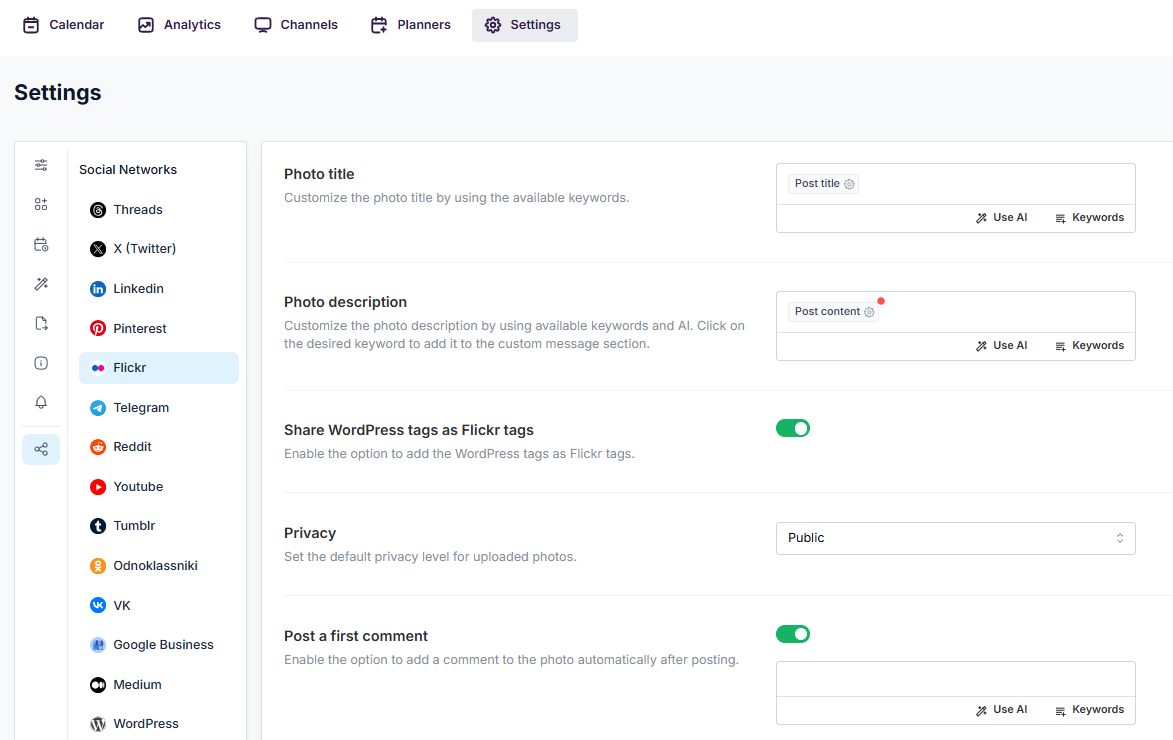
FS Poster provides several Flickr-specific settings that you can configure under Settings > Flickr:
- Photo Title — The title for the uploaded photo. Supports FS Poster keywords like
{post_title},{post_excerpt}, etc. - Photo Description — The description for the uploaded photo. Supports keywords.
- Photo Tags — Tags to add to the uploaded photo. Supports keywords including
{post_tags}. - Privacy — Set the default privacy level for uploaded photos (Public, Friends, Family, Friends & Family, or Private).
- First Comment — Automatically add a comment to the uploaded photo, useful for including a link back to your WordPress post.
How to Schedule Posts on Flickr from WordPress
Scheduling previously published WordPress posts to Flickr using the FS Poster Planner is straightforward.
Navigate to the Planner tab and click New Planner.
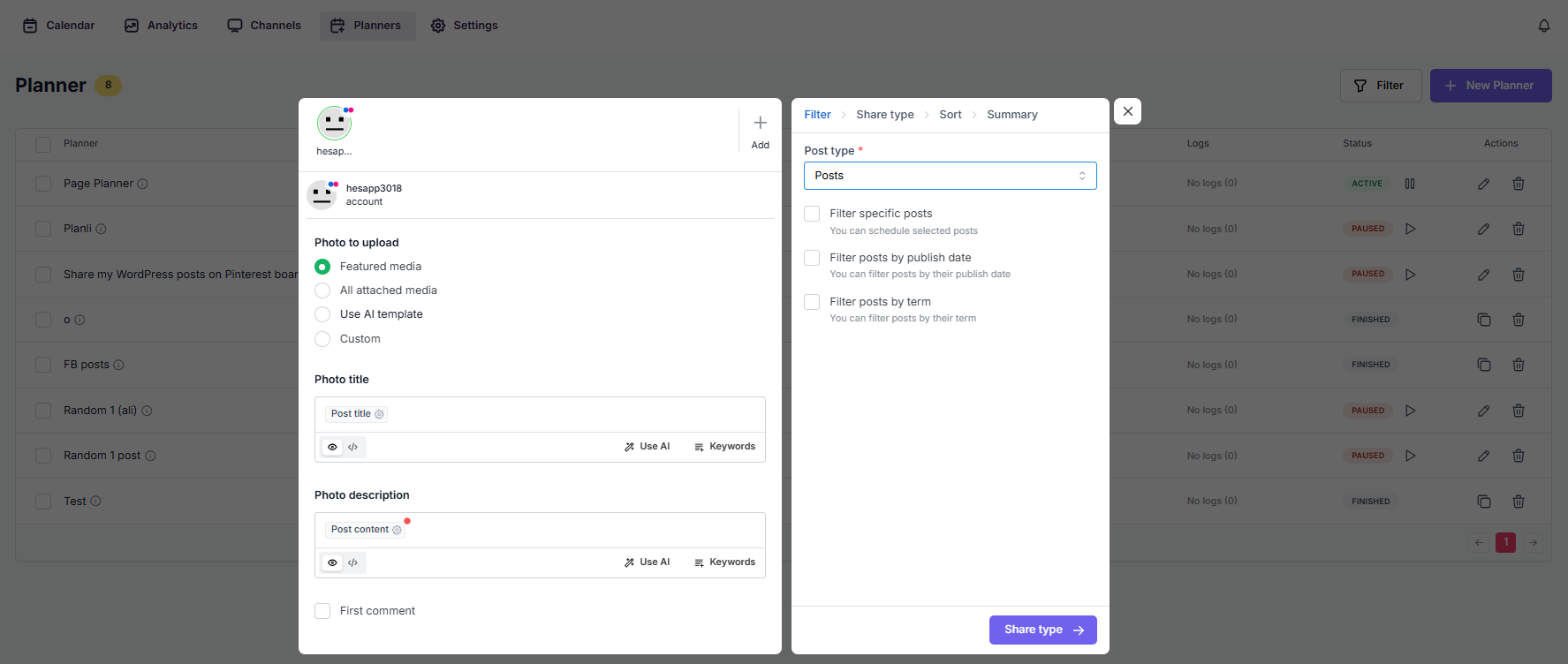
Select your Flickr channel, configure which posts to share (by category, tag, date, or specific posts), set the interval, and activate the planner.
FS Poster will automatically share your posts to Flickr based on the schedule you configured. You can choose to post randomly, from oldest to newest, or newest to oldest.
You can also set sleep times to avoid posting during specific hours, and customize the post content using built-in keywords or AI-generated content.
Channel Settings
Each Flickr channel can be individually configured:
- Activate — Enable the channel for automatic posting whenever a new WordPress post is published.
- Conditional Posting — Activate channels conditionally by selecting specific categories to share or exclude specific posts.
- Custom Content — Override the global Flickr settings with channel-specific content.
- Permissions — Allow other WordPress users to use this channel in their own FS Poster dashboard.
- Labels — Organize channels into groups for easier bulk management.
Conclusion
This article covered how to auto-post to Flickr from WordPress using FS Poster. With features like automatic photo uploads, album management, privacy controls, and scheduling, FS Poster makes it easy to keep your Flickr account active with fresh content from your WordPress site.
You can check out the core features of the plugin.
Contact us for any pre-sale questions: [email protected]
Write once. Post to 26 networks.
- 26 social networks
- Schedule & auto-repost
- Runs inside wp-admin


