En
The Workflow Notifications feature in FS Poster allows you to create automated notification rules. When a specific event occurs (such as a scheduled post failing to share), the plugin can automatically notify selected users via in-app notifications.
You can access this feature by navigating to FS Poster > Settings > Notifications.
- Go to Settings > Notifications > Rules tab;
- Click the Create new button;
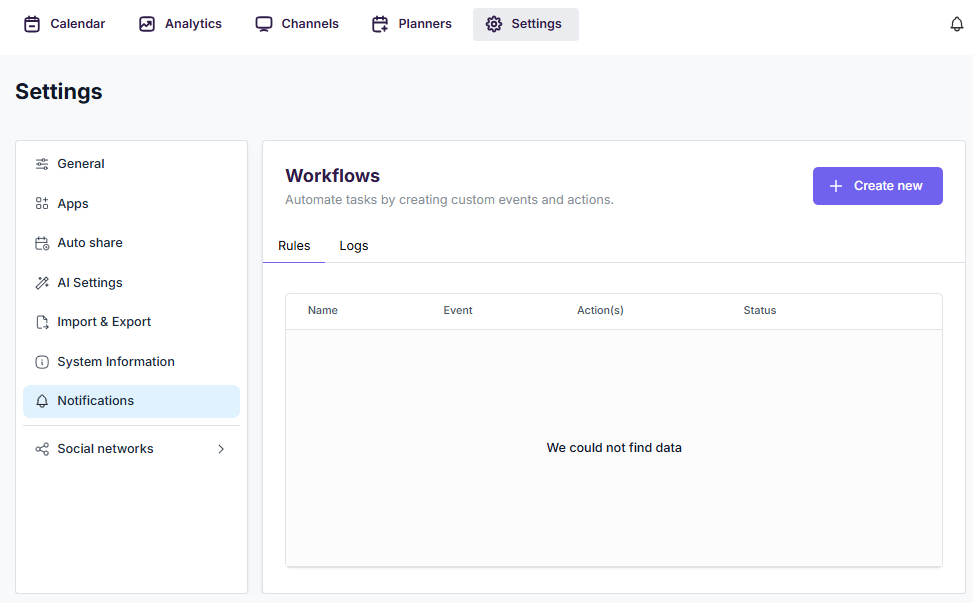
- In the modal that appears, fill in the following:
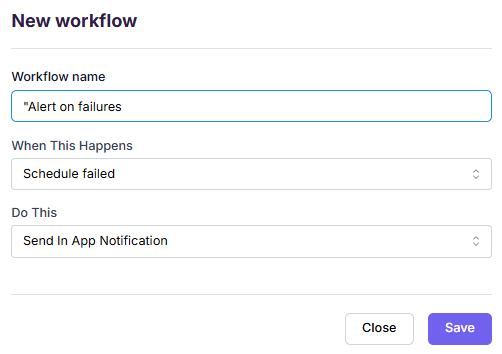
- Click Save to create the workflow.
After creating a workflow, you will be redirected to the workflow editing page. Here you can set filters to control when the workflow triggers.
- Click Set up next to the event in the left panel;
- In the right panel, you can configure the following filters:
Channels — Select specific channels to monitor. If left empty, the workflow will trigger for all channels.
Labels — Filter by channel labels. If left empty, the workflow will trigger regardless of labels.
Networks — Filter by specific social networks (e.g., Facebook, Instagram, Twitter). If left empty, the workflow will trigger for all networks.
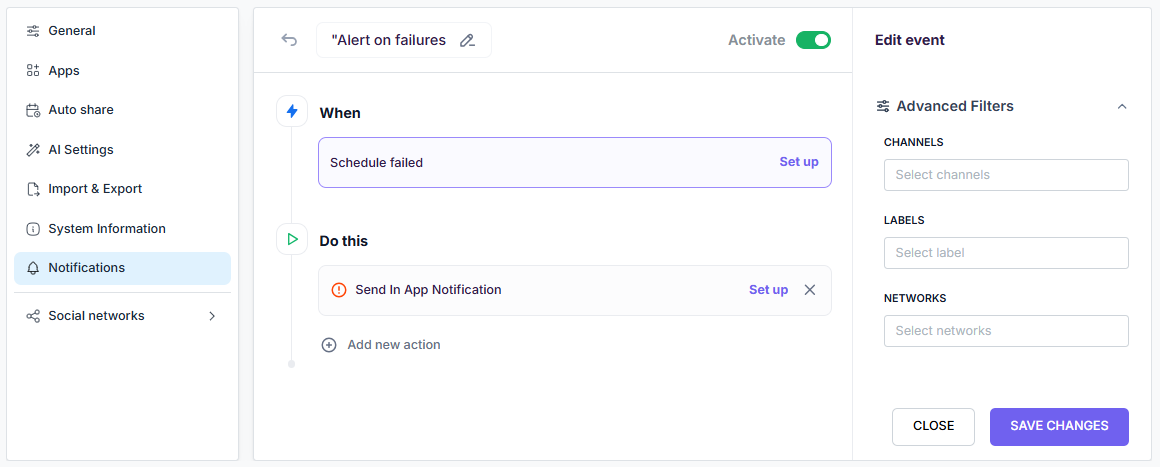
All filters work together — the workflow only triggers when all selected filter conditions are met.
- Click Set up next to the action in the left panel;
- Configure the In-App Notification with the following fields:
To — Choose which WordPress users will receive the notification. You can select specific users or use {schedule_owner} to dynamically notify the user who created the schedule.
Title — The notification title. Supports shortcodes.
Message — The notification message body. Supports shortcodes.
Type — The notification style (e.g., info, warning, error).
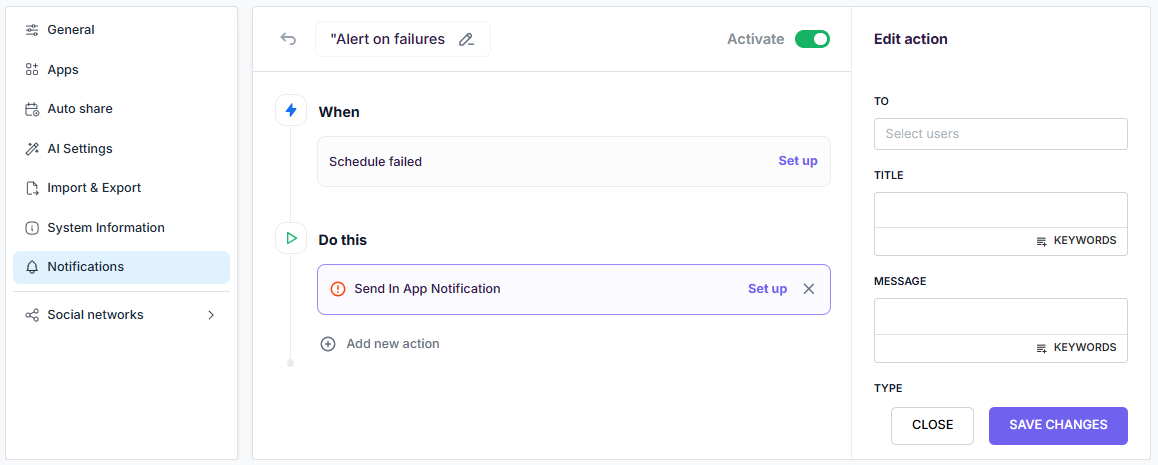
You can add multiple actions to a single workflow by clicking Add new action.
You can use the following shortcodes in notification titles and messages to include dynamic information:
{schedule_id} — Schedule ID{schedule_owner} — Name of the user who created the schedule{wp_post_id} — WordPress Post ID{wp_post_title} — WordPress post title{wp_post_link} — Link to the WordPress post{schedule_created_at} — When the schedule was created{send_time} — When the post was supposed to be sent{schedule_status} — Current status of the schedule{schedule_error_message} — The error message{channel_id} — Channel ID{channel_name} — Channel name{social_network} — The social network name- Use the Activate toggle in the top right corner of the workflow editing page to enable or disable the workflow;
- When activated, the workflow will automatically execute whenever the configured event occurs and all filter conditions are met.
You can monitor all workflow executions under Settings > Notifications > Logs tab.
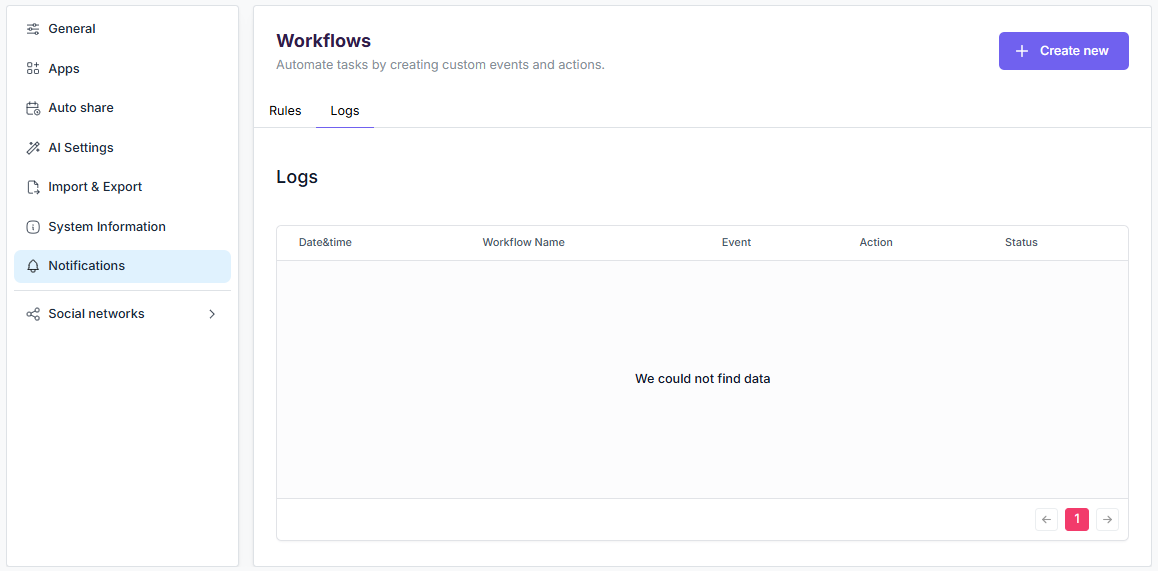
Each log entry shows:
You can use the Clear all button to delete all logs at once.
Currently, the following event is available:
Schedule Failed — Triggered when a scheduled post fails to be shared to a social media channel. This allows you to be instantly notified about sharing errors so you can take action quickly.
Currently, the following action is available:
Send In-App Notification — Sends a notification directly in the FS Poster dashboard. The notification will appear in the notification bell icon for the selected recipients.

By using this site, you agree to our Cookie Policy


