
En
- Go to FS Poster > Channels > Truth Social menu and click the Add channel button;
- Enter your Truth Social username or email and password;
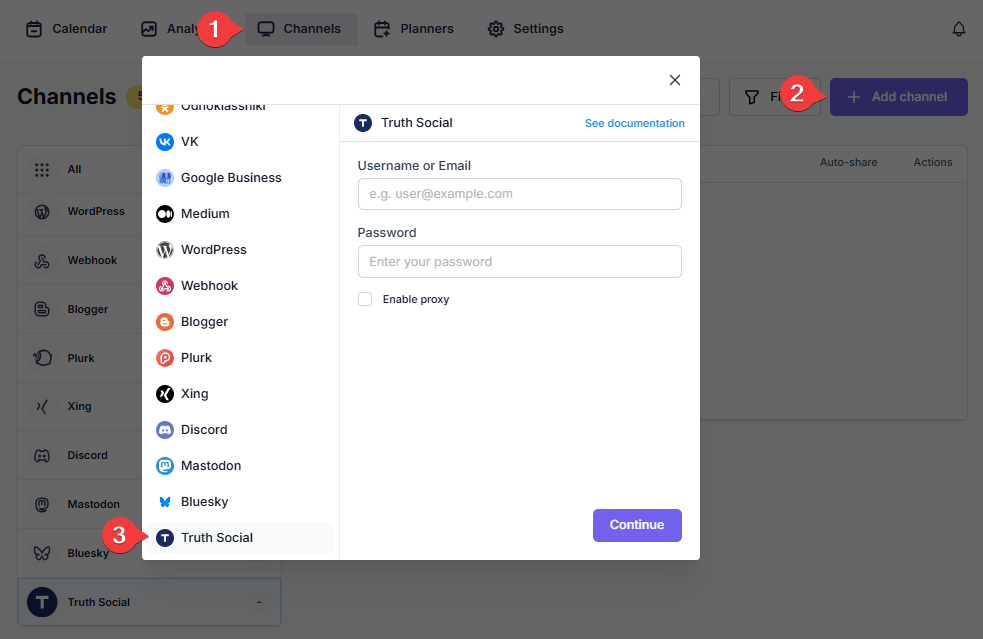
- You have the option to add the account with a Proxy as well;
- Click the Continue button to connect your account;
- After successful login, the channel will be added to the plugin automatically.
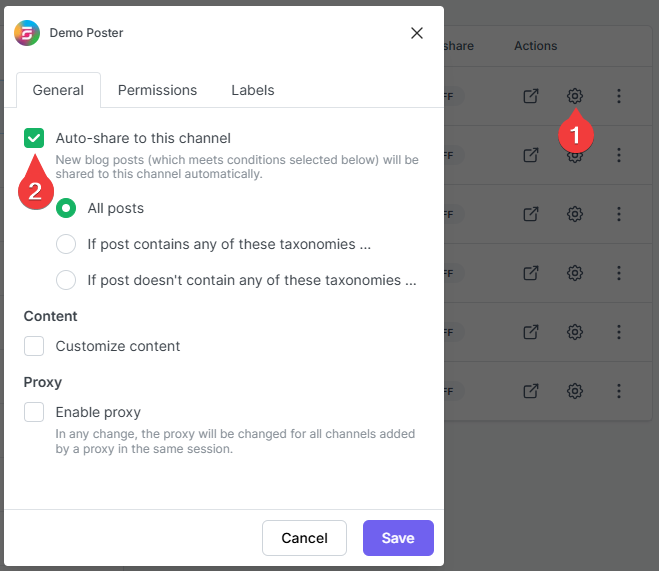
- Activate your channels to share posts on social networks automatically whenever a new WordPress post is published on your website. If you do not activate channels, you need to add them to the FS Poster section whenever you want to share specific posts on your social network accounts;
- You can also activate channels conditionally by selecting specific taxonomies to share specific posts or not share specific posts on particular channels. This will apply to only auto-posts;
- The Customize content option allows you to assign specific content for this specific channel which will override the content you specified in the social network settings;
- Moreover, you can enable proxy or edit the proxy credentials without reauthorizing the channel to the plugin;
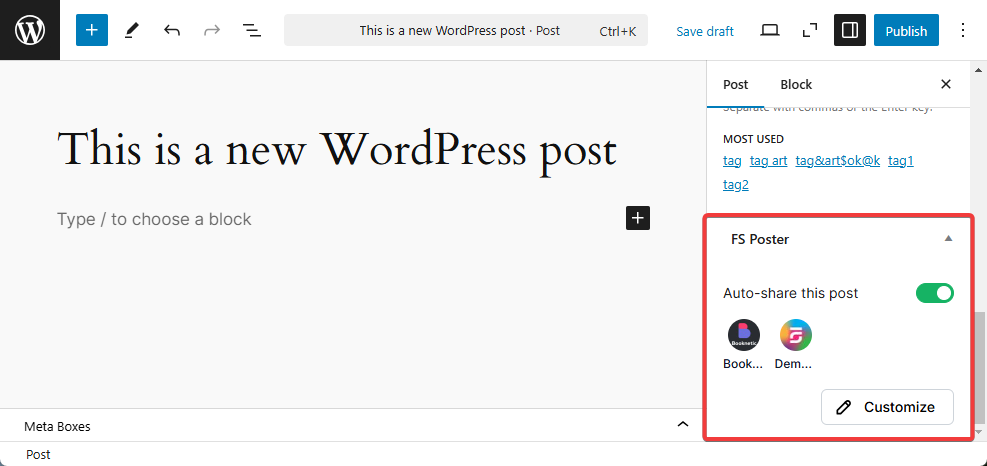
- Since channels are activated, they will appear on the FS Poster section when publishing a new WordPress post. Once the post is published, the plugin will share the post on these channels automatically;
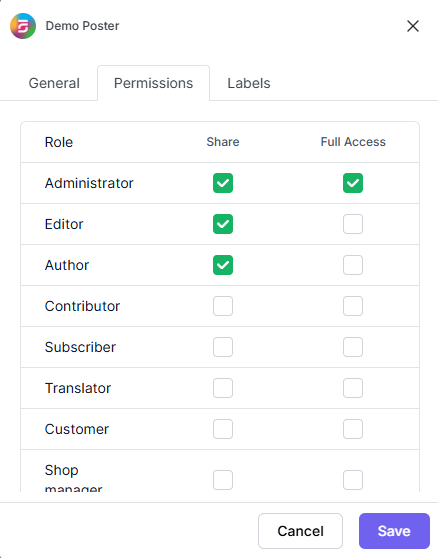
- In the Permissions tab, you can permit other WordPress users to use the channels in their FS Poster dashboard. You can either allow them to only share posts or give them full access to manage the channel, and edit its settings;
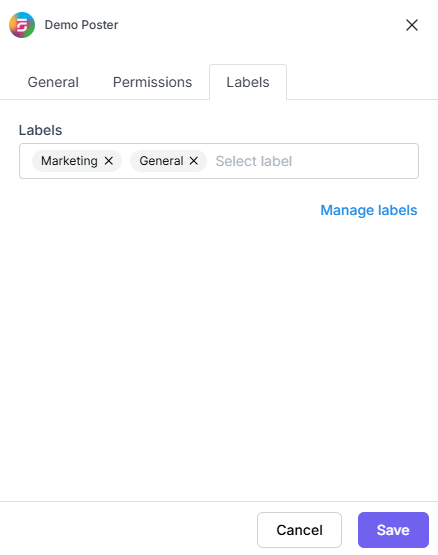
- In the Labels tab, you can organize channels into specific groups, making it easier to add a group of channels to the Planners or Schedules instead of adding them one by one.
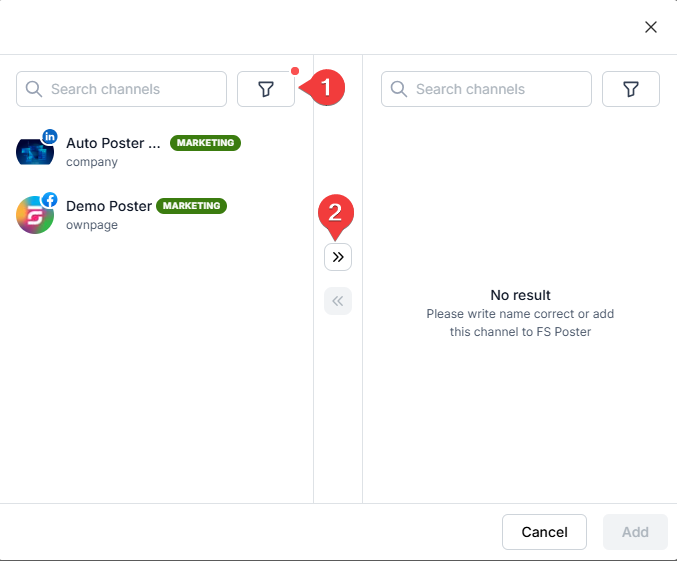
- Now, you can easily filter channels by label and click the >> button to add them all at once for sharing;

By using this site, you agree to our Cookie Policy


