
En
Content Approval lets you check posts before they are shared. Posts written by the roles you choose wait for a review, and an approver approves them, asks for changes or declines them.
Approvals cover posts written in the FS Poster composer and the calendar. Auto-shared WordPress posts, the FS Poster box in the WordPress post editor and planners share as before.
Content Approval is part of the Developer and Lifetime plans. On other plans, Settings > Approvals shows an upgrade option instead of the settings.
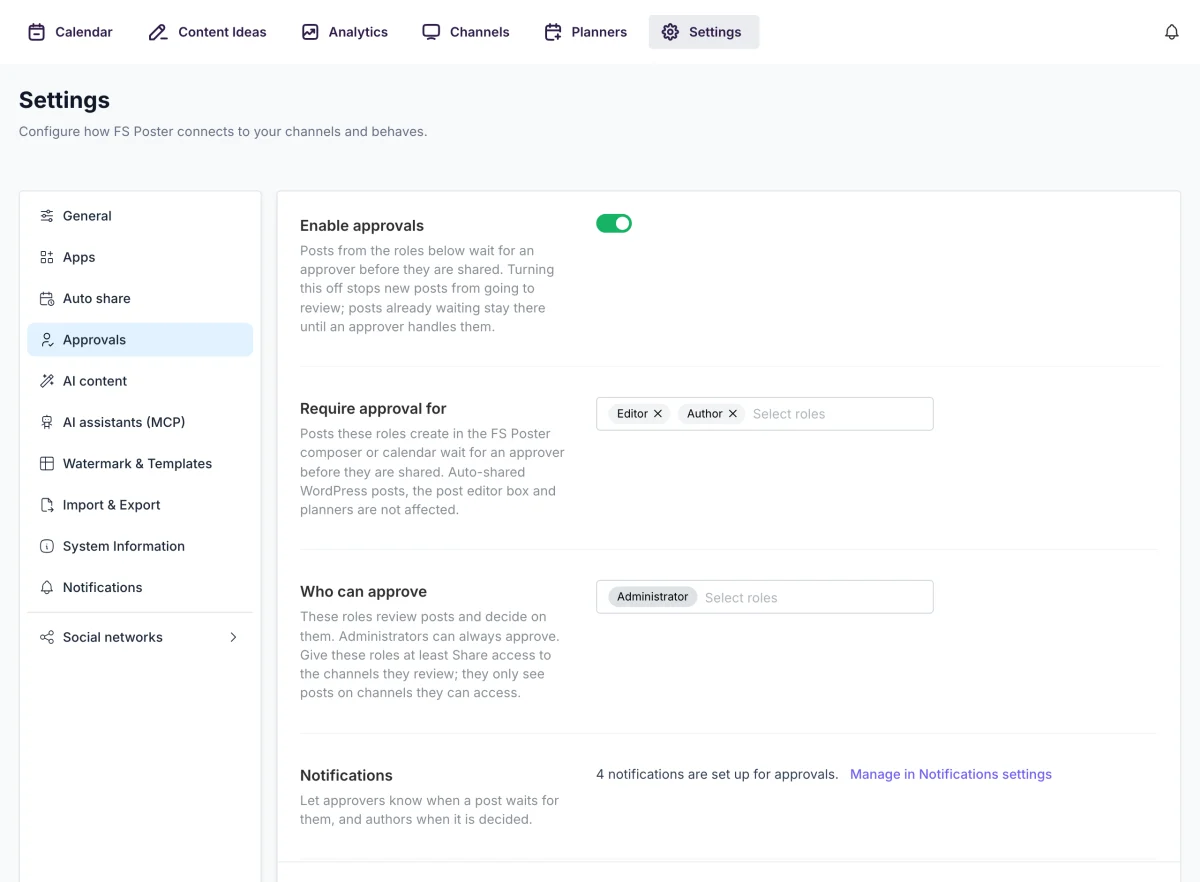
Turning approvals off later stops new posts from going to review. Posts that are already waiting stay there until an approver handles them.
An approver sees only the posts on channels they can access. If a post goes to a channel the approver can't see, it stays hidden from them.
Administrators see every channel. For any other approver role:
Without notifications, nobody is told that a post is waiting. Below the role settings, Settings > Approvals shows a Notifications row.
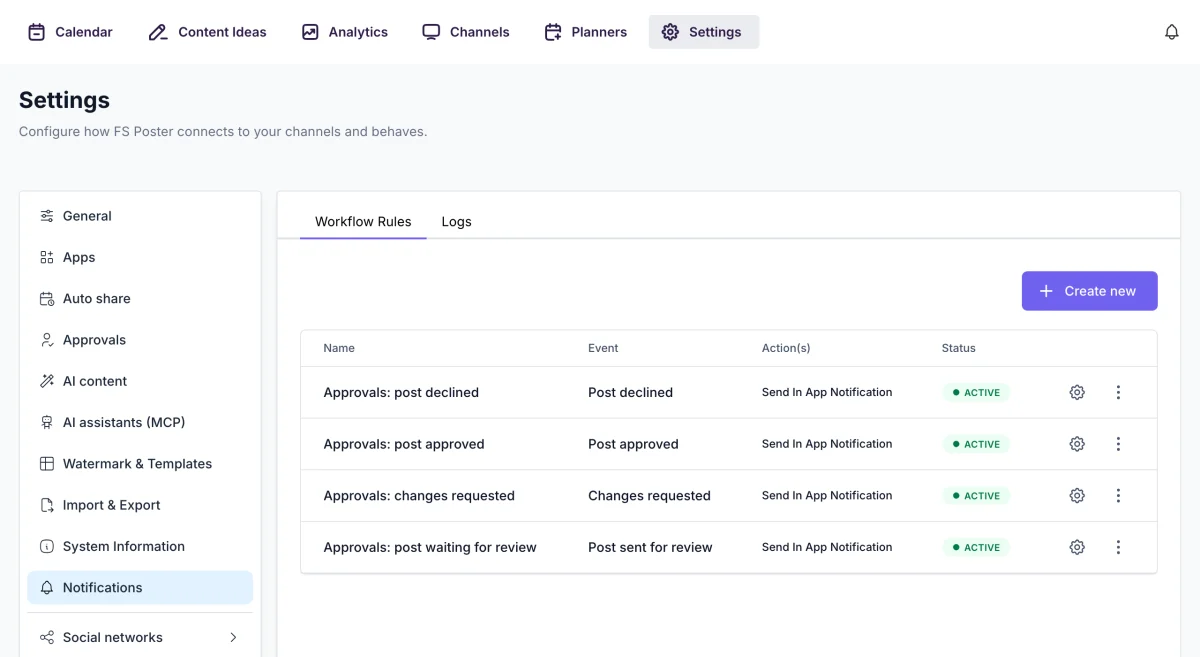
These events are available when you create a workflow in Settings > Notifications:
For recipients, Approvers sends the notification to every user who can approve, and Schedule owner sends it to the author of the post. In the title and message you can use {approval_actor} for the person who acted and {approval_comment} for their note, next to the usual schedule shortcodes. See Workflow Notifications for how workflows work.
For a user whose role needs approval, the composer works as usual with one difference: the button reads Submit for review, and Share now is hidden.
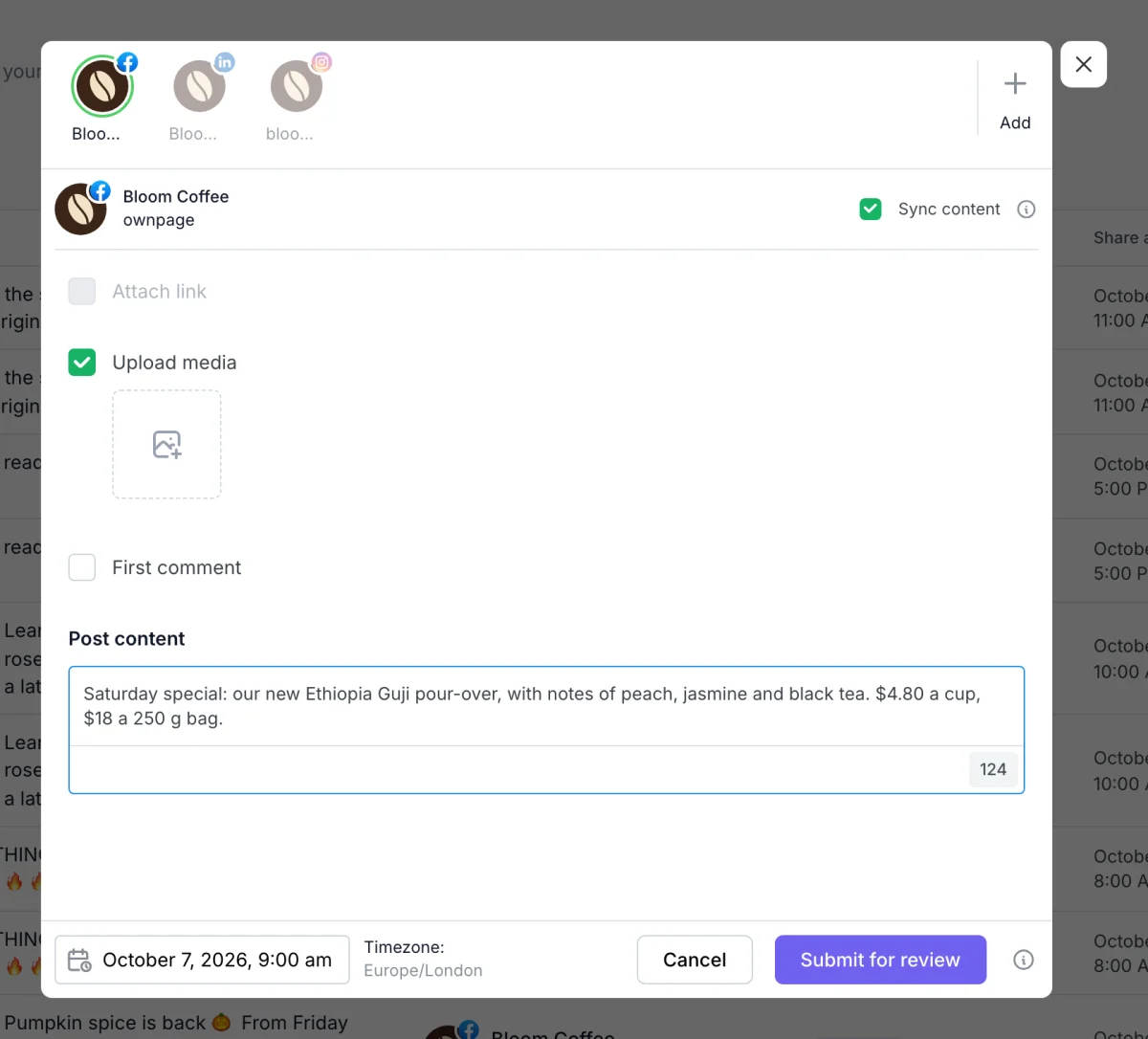
The post now shows as In review in the calendar and the list. If you edit it while it waits, your changes are saved and it stays in review.
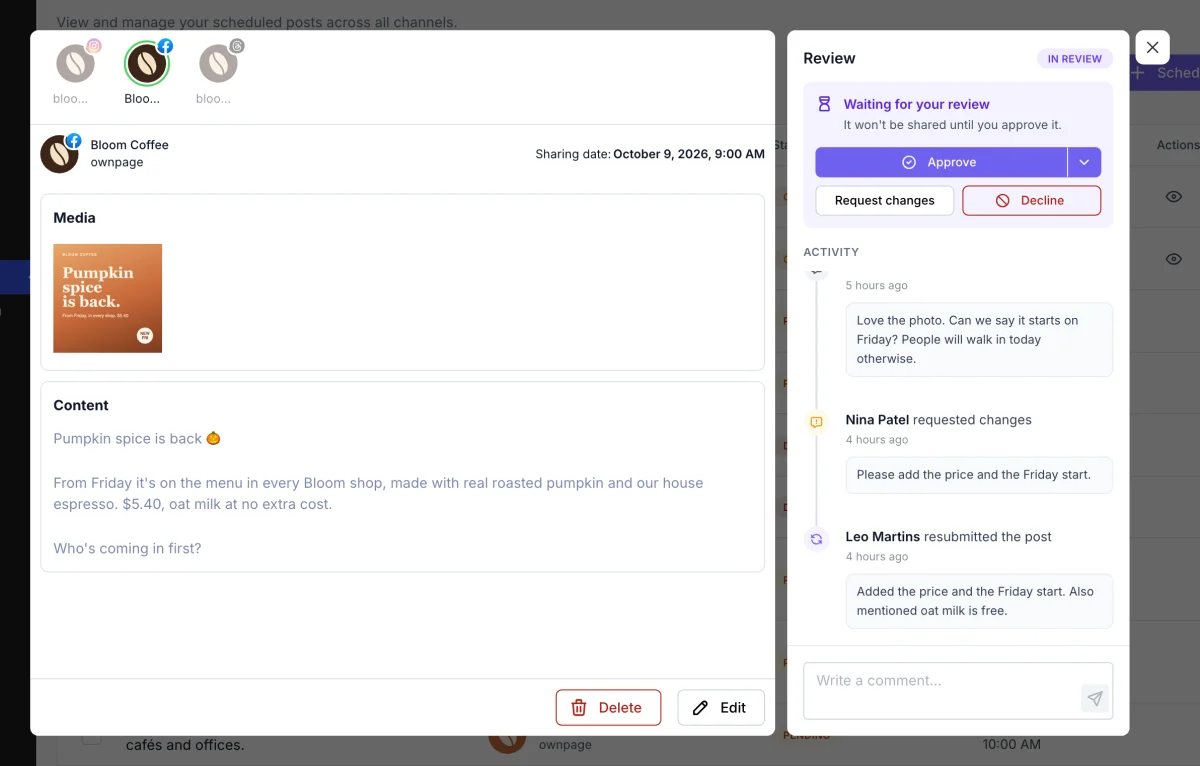
The actions sit in the status card at the top of the panel:
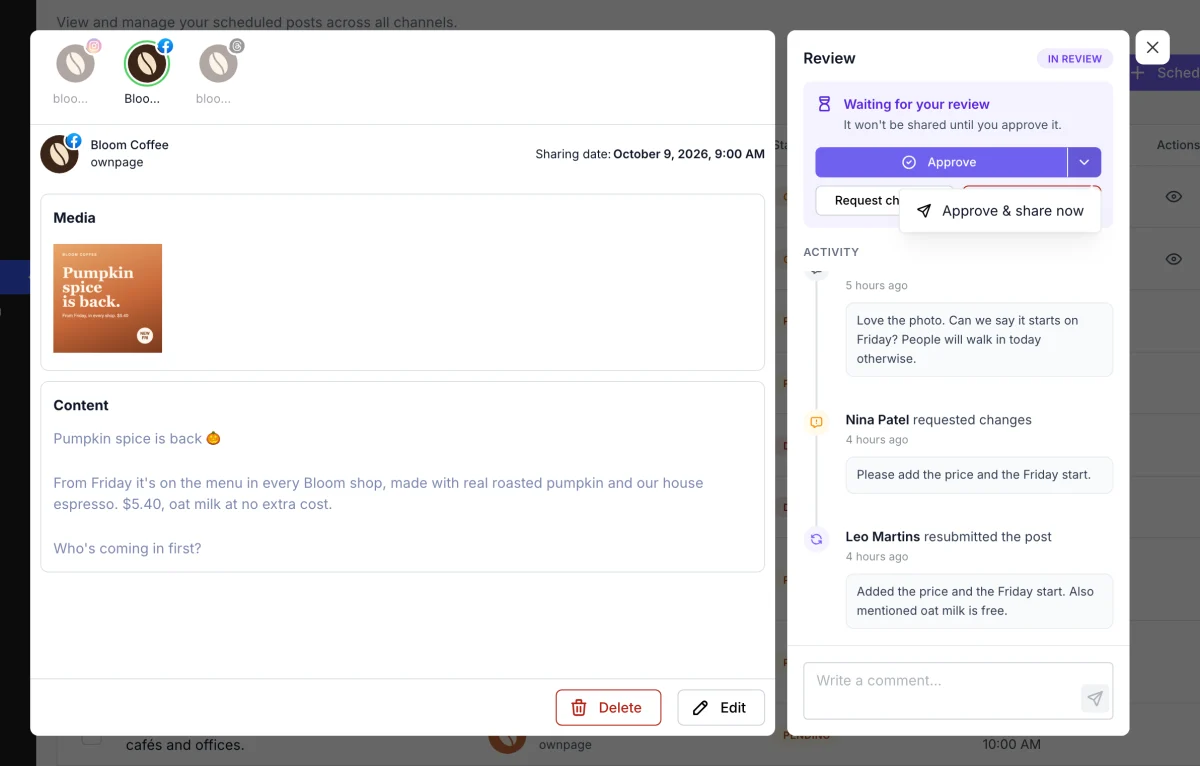
Under the actions, Activity lists everything that happened to the post: submissions, comments, change requests and decisions, each with its note. Anyone who can see the post can write in the comment box at the bottom, in any status. Press Ctrl + Enter (⌘ + Enter on a Mac) or click the send icon to post a comment.
The author sees the post as Changes requested, with the approver's note in the activity.
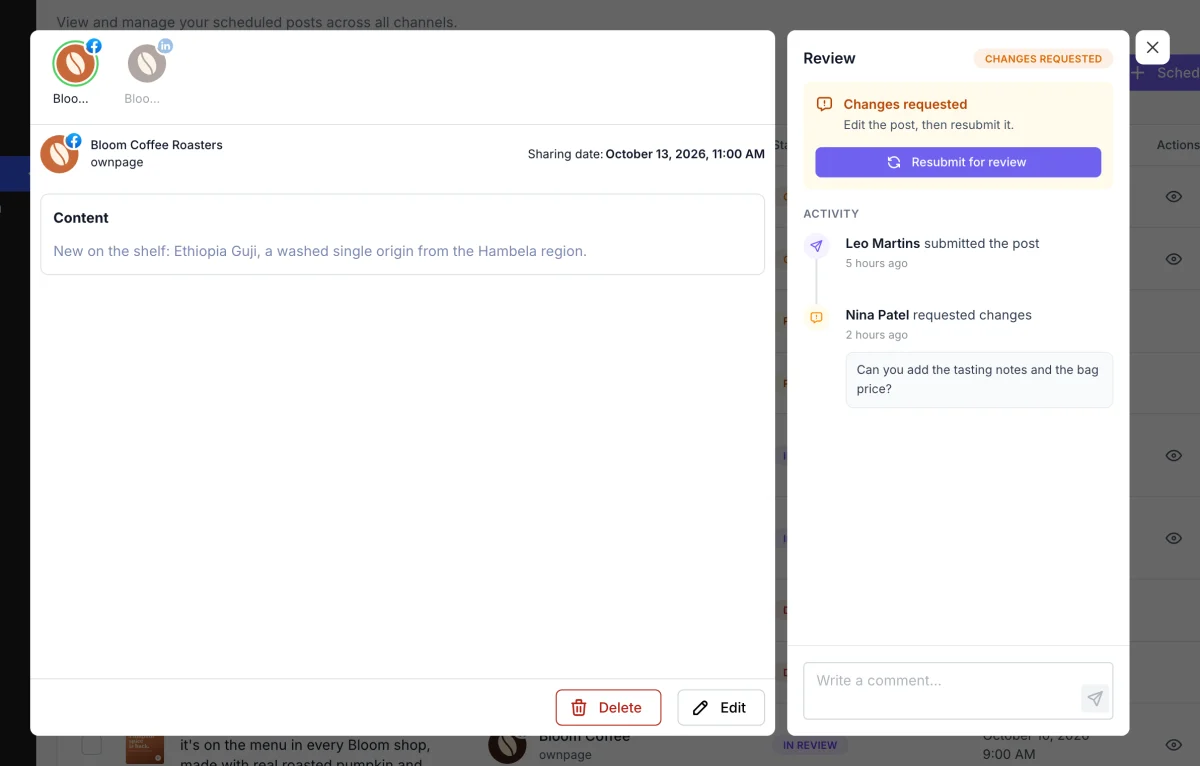
The approver doesn't have to wait for a resubmit. A post with changes requested can still be approved directly.
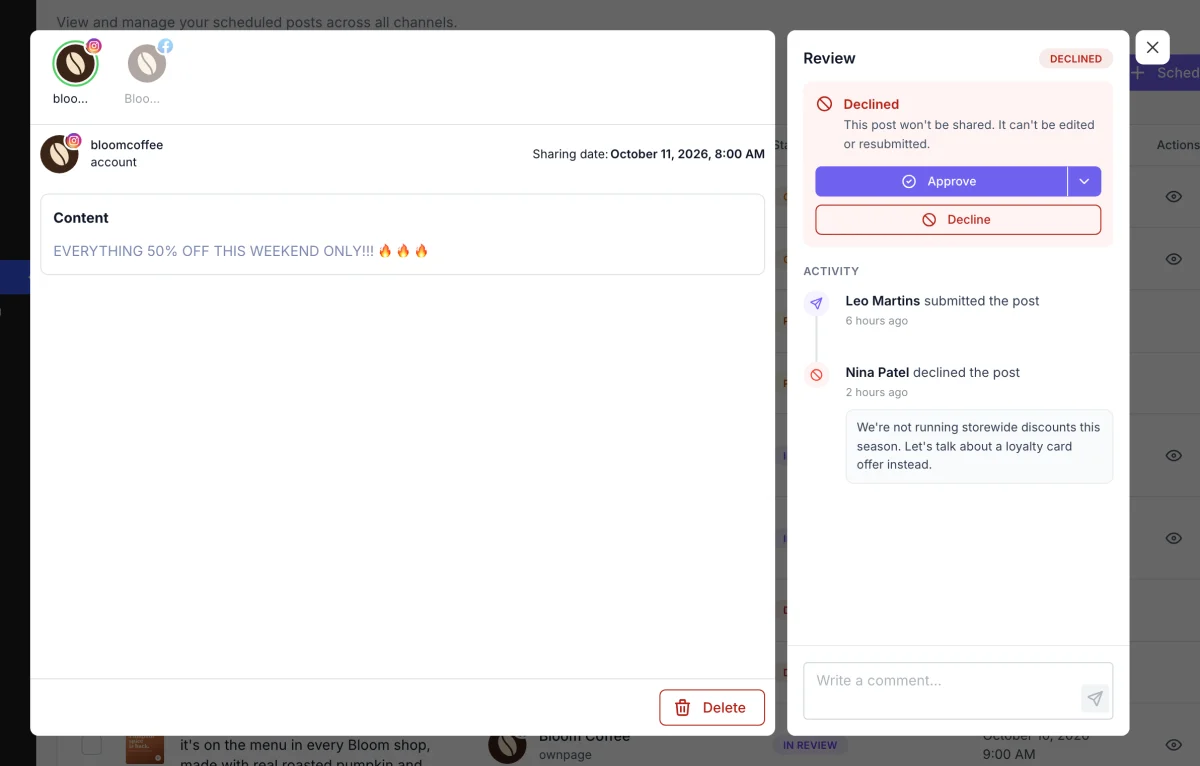
Decline is final. A declined post is never shared, and nobody can edit, resubmit or approve it. It stays in the list with its activity, so the team can see the reason, until someone deletes it. Comments still work.
| Status | Color | Meaning |
|---|---|---|
| In review | Purple | Waiting for an approver. |
| Changes requested | Orange | Sent back to the author to edit and resubmit. |
| Declined | Red | Stopped for good. It will never be shared. |
Posts in these statuses are never shared. Once approved, a post becomes a normal scheduled post.
Posts scheduled through AI assistants (MCP) follow the same rules. If the assistant signs in as a user whose role needs approval, its posts wait in review like everyone else's.
If the site moves to a plan without Content Approval, posts still in review keep their status, but nobody can decide on them. Edit and save such a post to release it. It is then scheduled like any other post.

By using this site, you agree to our Cookie Policy


