
En
A roundup is a planner that shares several posts as one post. On every run, it picks the posts that match your rules, writes one post that lists them and shares it to its channels. Use it for posts like "This week's 5 best-sellers" every Friday or a monthly digest of your blog.
Roundups are available on the Plus, Developer and Lifetime plans. A roundup is set up like a planner, with two differences: it has a Source step instead of a Sort step, and its post is written with roundup keywords.

Roundups are listed with your planners and carry a Roundup badge. You can pause, resume, edit and delete them like any planner, and the History icon shows their runs.
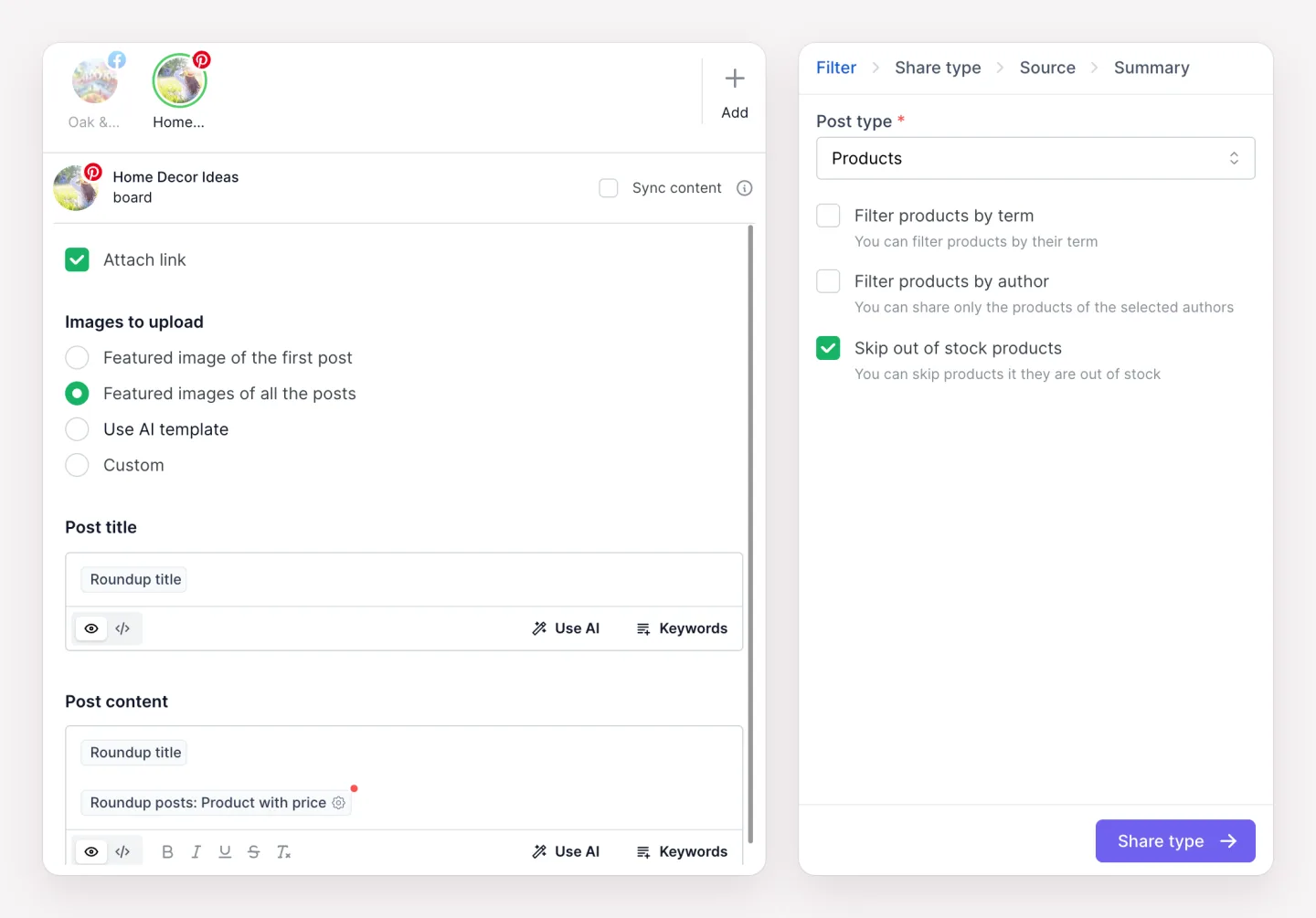
Choose the Post type. You can also filter the posts by term, such as a category or a tag, and by author. For products, you can turn on Skip out of stock products.
The post type comes first because it decides which sources the Source step offers. The WooCommerce sources appear only when the post type is Products. If you change the post type later, a WooCommerce source goes back to Latest posts.
A roundup has no publish date filter and no Filter specific posts option. The period in the Source step decides which posts count.
A roundup runs on the same share types as a planner: Interval, Weekly, Monthly and Annually. See Planner for the details of each.
The share type also sets how much time a roundup covers. With the default period, a weekly roundup looks at the past week, a monthly roundup at the past month, and a roundup every 10 days at its 10 days.
Pick the posts by decides which posts go in and in what order:
Posts that tie are ordered newest first. Password-protected posts are never picked.
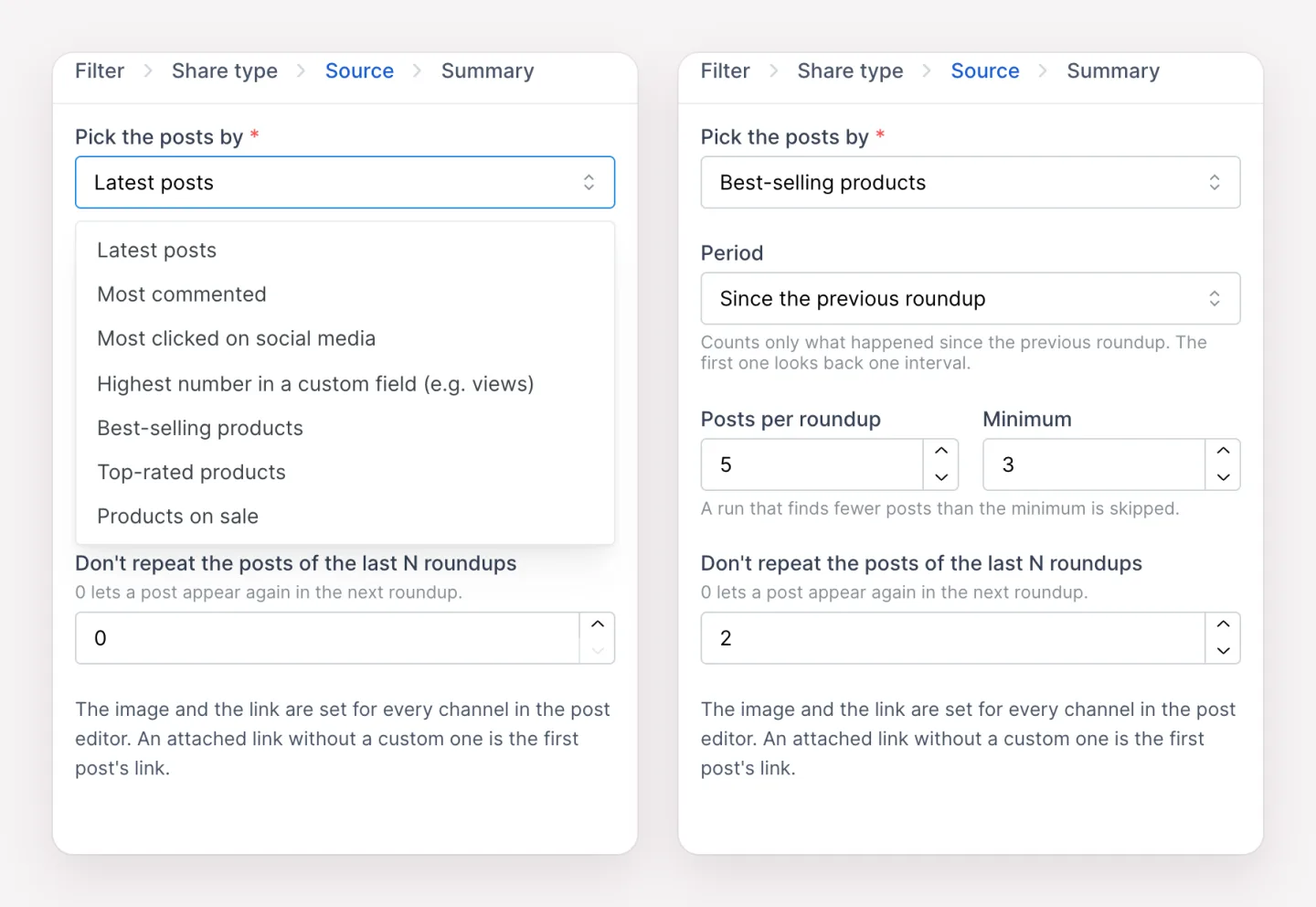
Period has two options:
Top-rated products and Products on sale have no period. They always use the current ratings and sale prices.
Posts per roundup sets how many posts the roundup lists, from 1 to 20. Minimum is the fewest posts a run needs: a run that finds fewer is skipped, and nothing is shared. Don't repeat the posts of the last N roundups leaves out the posts that the last N runs picked. With 0, a post can appear again in the next roundup.
Best-selling products counts the sales that WooCommerce Analytics records. While Analytics is turned off, the step shows a warning and sales aren't counted. Turn it on in WooCommerce > Settings > Advanced > Features.

Each channel's post is written in the composer on the left, with the roundup keywords from the Keywords menu:
A new channel starts with Roundup title followed by Roundup posts. Networks with a title field, such as Pinterest, Medium, Reddit and YouTube Shorts, start their title with Roundup title. Post keywords such as Post title don't go in the post itself. They go in the item template, where they are filled in for every picked post.
Click the gear icon on Roundup posts to set how the list is written:
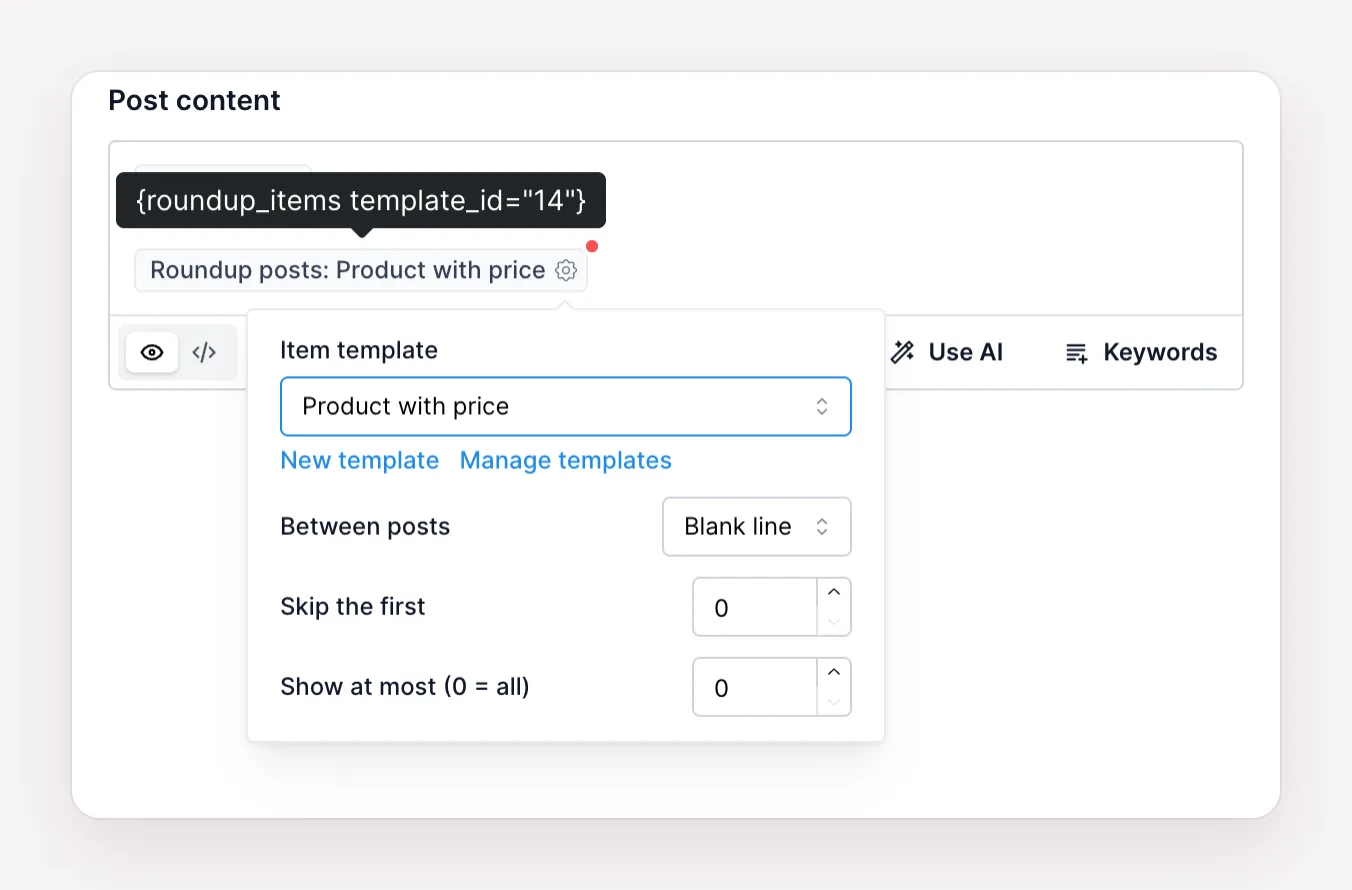
With the last two options you can feature your top post. Add Roundup posts twice: once with Show at most set to 1 under a line like "This week's top pick", and once with Skip the first set to 1 under "Also popular".
An item template is written once and repeated for every picked post. Create one with New template in the Roundup posts options, or open Manage templates to edit and delete them. Your templates can be used in every roundup and on every channel.
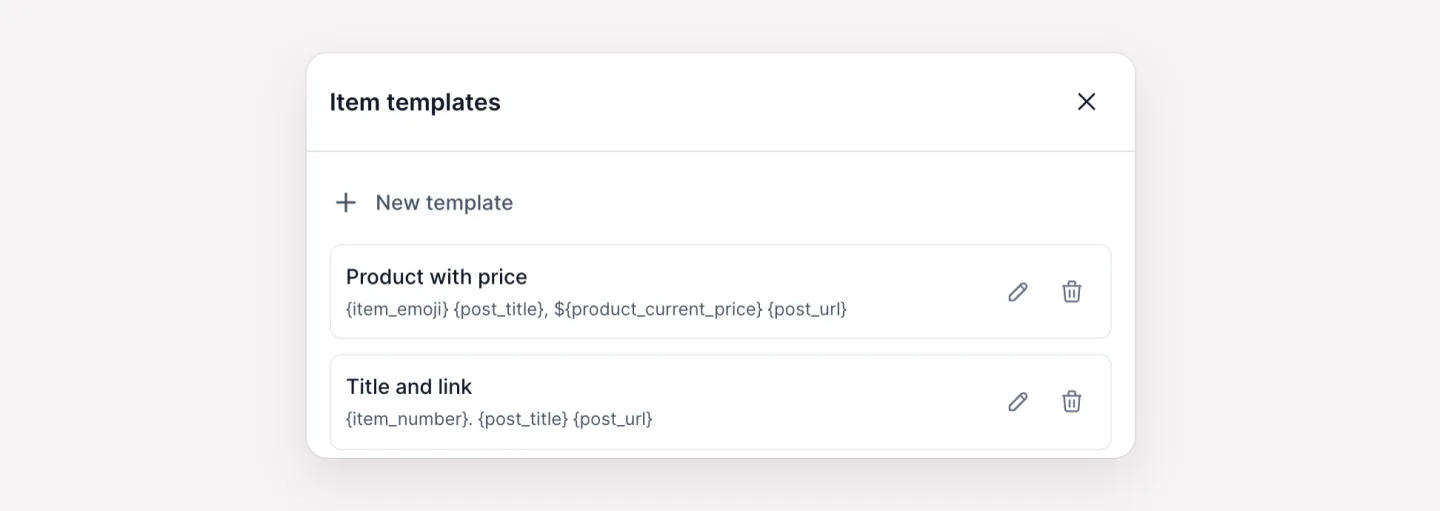
Every post keyword works in a template: Post title, Post URL, Post excerpt, product prices, custom fields and so on. Two keywords exist only here:
For example, {item_emoji} {post_title}, ${product_current_price} on one line and {post_url} on the next gives "1️⃣ Handmade Oak Serving Board, $65.00" followed by the product's link. The Product current price keyword gives the number only, so add your currency sign in the template.
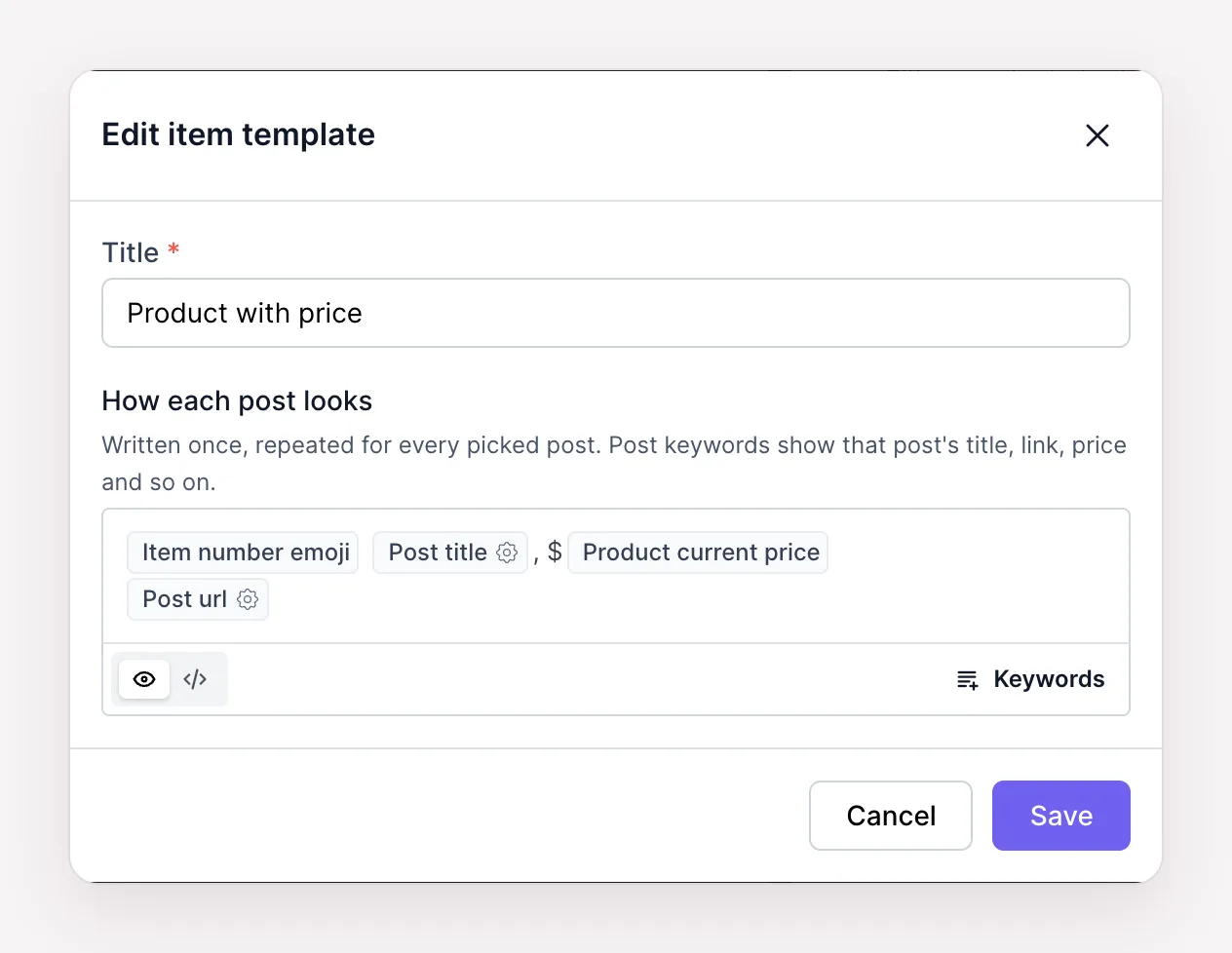
If you delete a template that roundups use, those roundups share no posts until you pick another template. A run leaves out any channel whose template is missing.
Images and links are set for each channel in the composer:
At its time, the roundup picks the posts, writes the final text, images and link into a regular scheduled post for every channel and shares it. You find those posts in the Calendar and in Logs like any other post, and the roundup records the run in its History.
Roundups run on the WordPress cron, like every planner. To make them run on time, set up a cron job on your server.
Click the History icon next to a roundup to see its runs, newest first. Each run shows its time and the posts it picked. A run that shared nothing shows the reason:
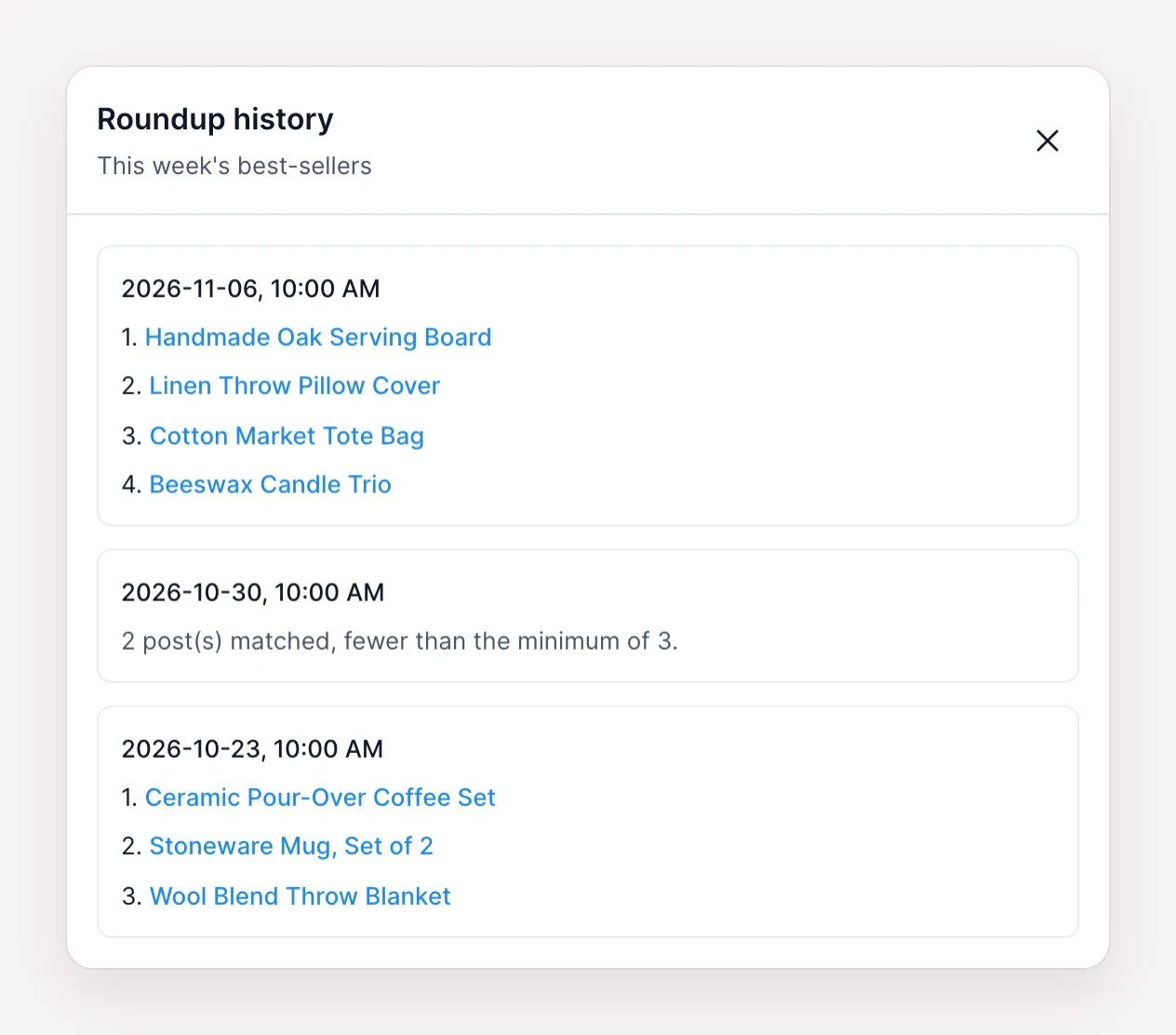
How each channel shared the post is in Logs.
If you move to a plan without roundups, your roundups are kept, but they don't share anything. Each run is recorded as skipped with the plan message, and saving a roundup or an item template shows the same message. When you move back to Plus, Developer or Lifetime, the roundups run again on their schedule.

By using this site, you agree to our Cookie Policy


