
En
AI assistants such as Claude, Cursor and VS Code can schedule and manage your FS Poster posts. The assistant connects to your WordPress site over MCP (the Model Context Protocol) and works as a WordPress user you choose.
This guide takes about ten minutes. You install one free plugin, create an application password and add a few lines to your AI app.
AI assistants are included in the Plus plan and above.
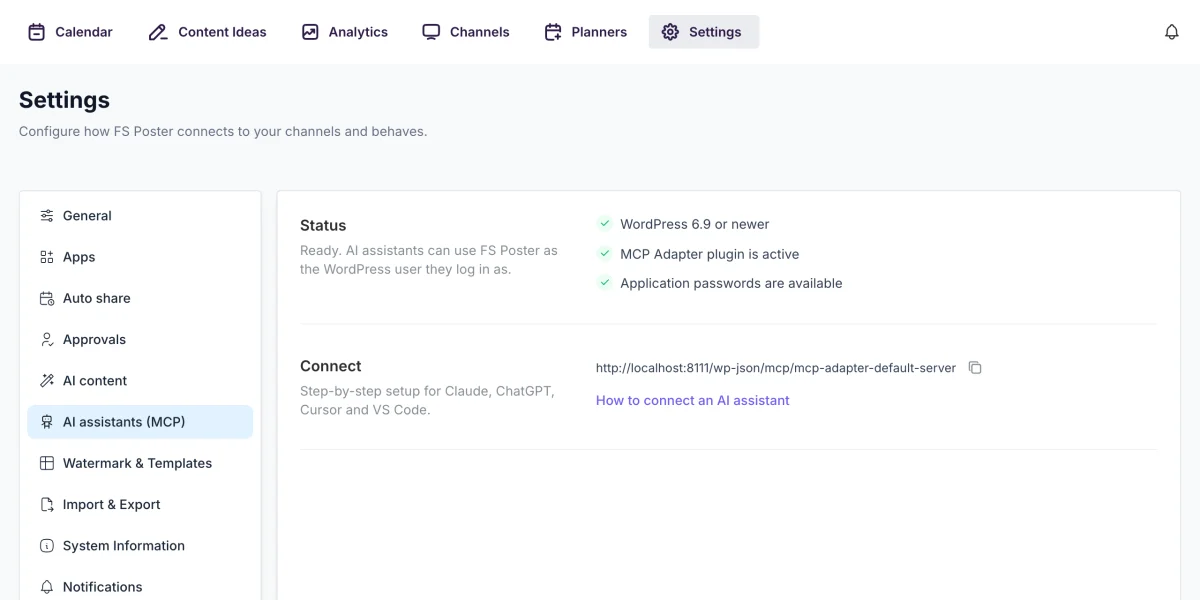
node -v in a terminal, or install it from nodejs.org.Go to FS Poster > Settings > AI assistants (MCP) to check your site. Each line turns green when it's ready. The page also shows your MCP endpoint with a copy button. You'll need it in step 3.
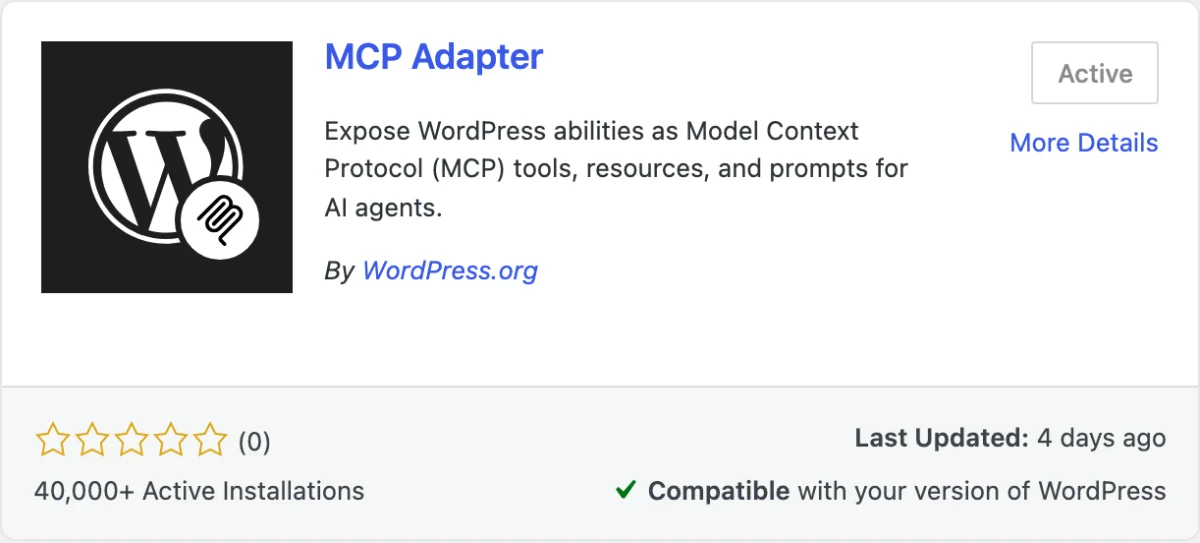
You can also download it from wordpress.org/plugins/mcp-adapter.
The assistant works as the WordPress user whose application password it uses. It sees the same channels and has the same permissions in FS Poster as that user.
We recommend a separate user for the assistant, for example "AI assistant" with the Editor role. If you use Content Approval, add that role to Require approval for. Every post the assistant schedules then waits until a person approves it.

To cut the assistant's access later, click Revoke next to this password.
In the examples below, replace these three values with your own:
https://your-site.com with your site address. The full endpoint is shown in Settings > AI assistants (MCP).your-username with the WordPress username from step 2.your-application-password with the password from step 2. The spaces in it are fine.claude_desktop_config.json.fs-poster entry below and save the file. If the file already has an mcpServers section, add the entry inside it.{
"mcpServers": {
"fs-poster": {
"command": "npx",
"args": ["-y", "@automattic/mcp-wordpress-remote@latest"],
"env": {
"WP_API_URL": "https://your-site.com/wp-json/mcp/mcp-adapter-default-server",
"WP_API_USERNAME": "your-username",
"WP_API_PASSWORD": "your-application-password"
}
}
}
}Run this in your terminal:
claude mcp add --transport stdio fs-poster \
--env WP_API_URL=https://your-site.com/wp-json/mcp/mcp-adapter-default-server \
--env WP_API_USERNAME=your-username \
--env "WP_API_PASSWORD=your-application-password" \
-- npx -y @automattic/mcp-wordpress-remote@latestKeep the name fs-poster right after --transport stdio. Then run claude mcp list. FS Poster should show as Connected.
Claude Code can also connect without Node.js, straight over HTTP. Encode your-username:your-application-password in Base64 (on macOS or Linux: printf '%s' 'your-username:your-application-password' | base64) and use the result:
claude mcp add --transport http fs-poster \
https://your-site.com/wp-json/mcp/mcp-adapter-default-server \
--header "Authorization: Basic YOUR_BASE64_VALUE"Open or create ~/.cursor/mcp.json (for all projects) or .cursor/mcp.json inside a project, and add:
{
  "mcpServers": {
    "fs-poster": {
      "command": "npx",
      "args": ["-y", "@automattic/mcp-wordpress-remote@latest"],
      "env": {
        "WP_API_URL": "https://your-site.com/wp-json/mcp/mcp-adapter-default-server",
        "WP_API_USERNAME": "your-username",
        "WP_API_PASSWORD": "your-application-password"
      }
    }
  }
}Create .vscode/mcp.json in your project, or run MCP: Open User Configuration from the Command Palette to use it everywhere. VS Code asks for the password the first time and stores it safely:
{
  "inputs": [
    {
      "type": "promptString",
      "id": "wp-app-password",
      "description": "WordPress application password",
      "password": true
    }
  ],
  "servers": {
    "fs-poster": {
      "type": "stdio",
      "command": "npx",
      "args": ["-y", "@automattic/mcp-wordpress-remote@latest"],
      "env": {
        "WP_API_URL": "https://your-site.com/wp-json/mcp/mcp-adapter-default-server",
        "WP_API_USERNAME": "your-username",
        "WP_API_PASSWORD": "${input:wp-app-password}"
      }
    }
  }
}
Note that VS Code uses servers where the other apps use mcpServers. Use FS Poster from Copilot Chat in agent mode.
codex mcp add fs-poster \
  --env WP_API_URL=https://your-site.com/wp-json/mcp/mcp-adapter-default-server \
  --env WP_API_USERNAME=your-username \
  --env "WP_API_PASSWORD=your-application-password" \
-- npx -y @automattic/mcp-wordpress-remote@latestWordPress core has no OAuth server. The MCP Adapter signs in with application passwords, as in the steps above. ChatGPT connects to MCP servers only with OAuth, so to use FS Poster from ChatGPT, install a WordPress plugin that adds OAuth to the MCP Adapter. The same applies to connectors in the Claude web app.
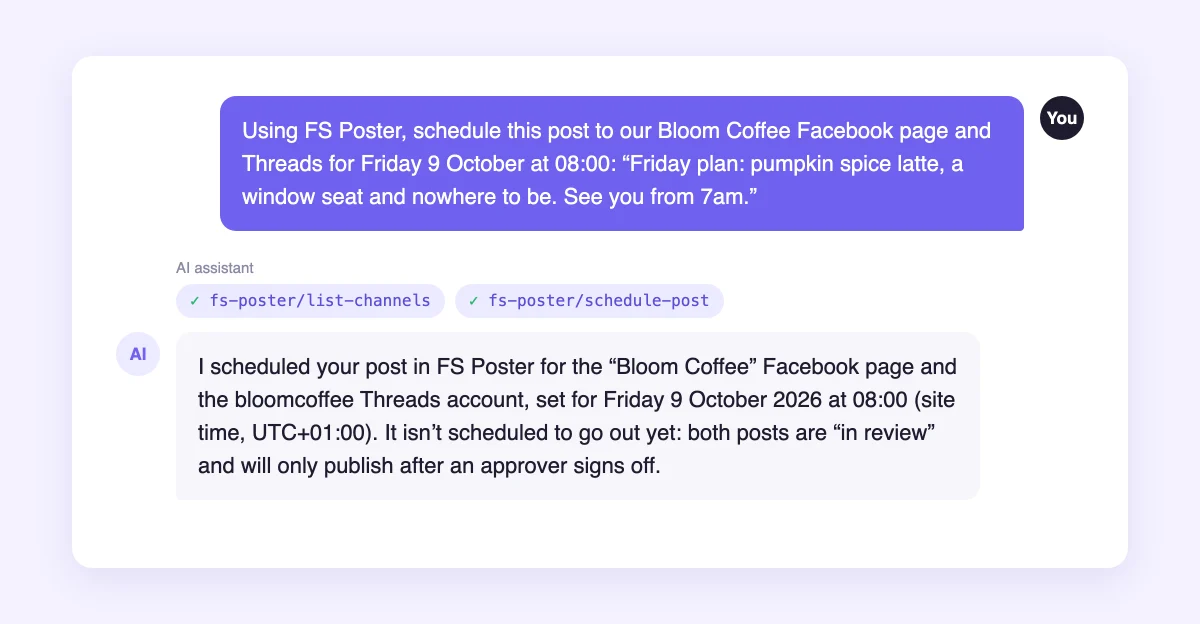
Start a new chat and ask: "List my FS Poster channels." The assistant finds the FS Poster tools by itself. Your app may ask you to allow each tool the first time.
Some requests to try next:
Times use your site's timezone from Settings > General, unless you say otherwise. To attach an image or video, give the assistant its media library ID. Open Media > Library, click the file and look for item=123 in your browser's address bar.
| Ability | What it does |
|---|---|
fs-poster/ | Lists the channels the user can post to. Can filter by social network. |
fs-poster/ | Schedules a post on one or more channels, with optional images or videos. Without a time, it shares right away. |
fs-poster/ | Lists posts, newest first. Can filter by status, such as failed or in review. |
fs-poster/ | Shows a post's status on each channel, with the error message or the link to the shared post. |
fs-poster/ | Moves a post that hasn't been shared yet to a new time. |
fs-poster/ | Shares the failed channels of a post again. |
fs-poster/ | Deletes a post from every channel it was scheduled to. A post that is being shared at that moment is kept. |
There is no Application Passwords section in the profile. Your site doesn't use HTTPS, or a security plugin turned application passwords off. In Wordfence, the option is Disable WordPress application passwords under Firewall > Brute Force Protection.
The app doesn't show any FS Poster tools. Check that every line in Settings > AI assistants (MCP) is green, then quit and reopen the app. For the npx setups, run node -v and make sure it's 22 or newer.
You get a 401 or "not allowed" error. Check the username and the application password. Make sure the user can open FS Poster in the WordPress dashboard.
Your permalinks are set to Plain. The /wp-json/ address doesn't exist then. Copy the endpoint from Settings > AI assistants (MCP) instead. On Plain permalinks it looks like https://your-site.com/?rest_route=/mcp/mcp-adapter-default-server.
Claude Desktop shows an error for the server. Its logs are in ~/Library/Logs/Claude on macOS and %APPDATA%\Claude\logs on Windows.

By using this site, you agree to our Cookie Policy


